On this tab
Start a screen recording in Chrome
The overlay opens here. The file stays on this computer until you share.
Choose a Chrome tab, a window, or the screen. Pause, stop, or discard from the recording controls.
- No account
- Local first
- No watermark
- 4K recording
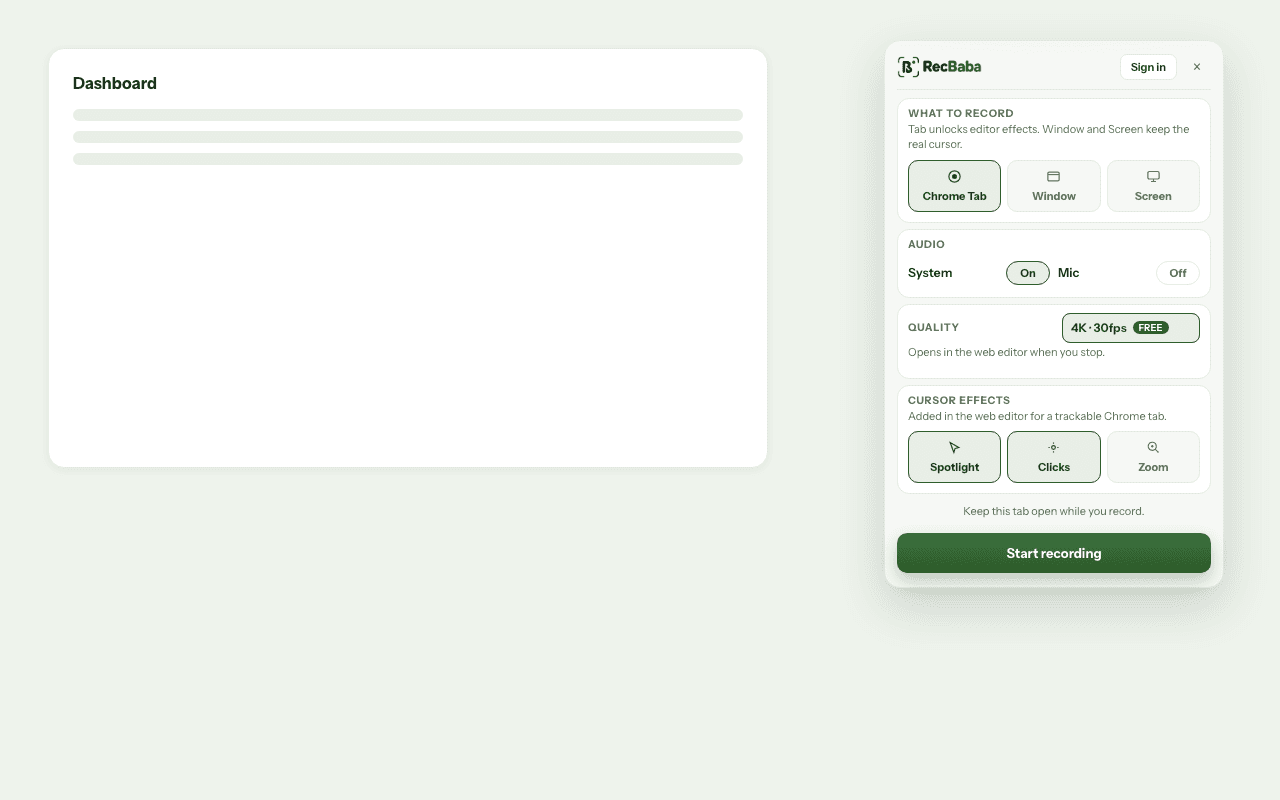
This overlay opens on this tab when you start.
Before the countdown
What you choose in the overlay
The overlay opens on this tab, in this order. Chrome Tab is selected to start.
Chrome Tab, Window, or Screen
A Chrome tab is the usual choice for a walkthrough of a site. Window records one application. Screen records the whole display.
Quality
480p and 720p at 30fps. 1080p, 1440p, and 4K at 30 or 60fps, plus Auto. The default is 1080p at 30fps.
Microphone and system audio
System audio and the microphone are separate switches. System audio starts on. The microphone starts off. Both can be on, and they mix on this computer.
Camera and camera bubble
Camera starts off. Turn it on to include the webcam. The bubble is composited into the recording on this computer. Both are free on every plan.
Cursor effects
Spotlight and click rings start on for a Chrome Tab. Follow zoom starts off. Window and Screen keep the real cursor. The effects are applied when you export.
Auto follows the display: 4K at 30fps, 1440p at 60fps unless the device pixel ratio is above 2, 1080p at 60fps, and 720p or 480p at 30fps. On Free, recording time follows the output height: unlimited at 720p and below, 30 minutes at 1080p or 1440p, and 5 minutes at 4K. Pro and Max have no recording-time cap. The bands are on the 4K screen recorder page and on pricing. Cursor effects for a tab recording are covered on the video editor page.
During the take
Controls while you record
A 3-second countdown runs before the take. That screen has no cancel button.
On-page pill
A live timer, Pause or Resume, and Stop. The pill is the control on the page you are recording.
Discard
Discard is on the extension toolbar panel, not the pill. It deletes that recording from this computer.
Keep this tab open
The timer, pause, and stop controls stay on this tab. Keep this tab open while you record.
These are the shortcuts RecBaba suggests. Chrome uses them unless you have changed them.
After you stop
The file stays on this computer
The recording is written on this computer every 2 seconds while the take is running.
- Pause and stop do not upload. How privacy works.
- Stop opens the editor for that recording. Explore the video editor.
- Sharing a link is a separate step. Share links.
- Google Drive is an optional destination. Save to Drive.
Starting and stopping
Questions about starting and stopping
These answers are about the recording session. Sharing, accounts, and plan limits live elsewhere.
The overlay opens on this tab. You choose a Chrome tab, window, or screen, then quality, audio, camera, and cursor options. A 3-second countdown runs, and the take starts. Nothing is uploaded.
Ready to record?
The overlay opens on this tab. The file stays on this computer until you share.
Start Recording