
Screen Recorder with Mic and System Audio: Setup Guide
How to capture microphone and system (tab) audio at the same time in RecBaba’s Chrome screen recorder — mixed locally, with no transcription upload.
On this page
A screen recording without the soundtrack is usually a re-take. RecBaba mixes your microphone and the computer’s (or tab’s) audio into one file, on the device, while you record. Nothing is sent to a transcription service. You can leave either source off if you only need one.
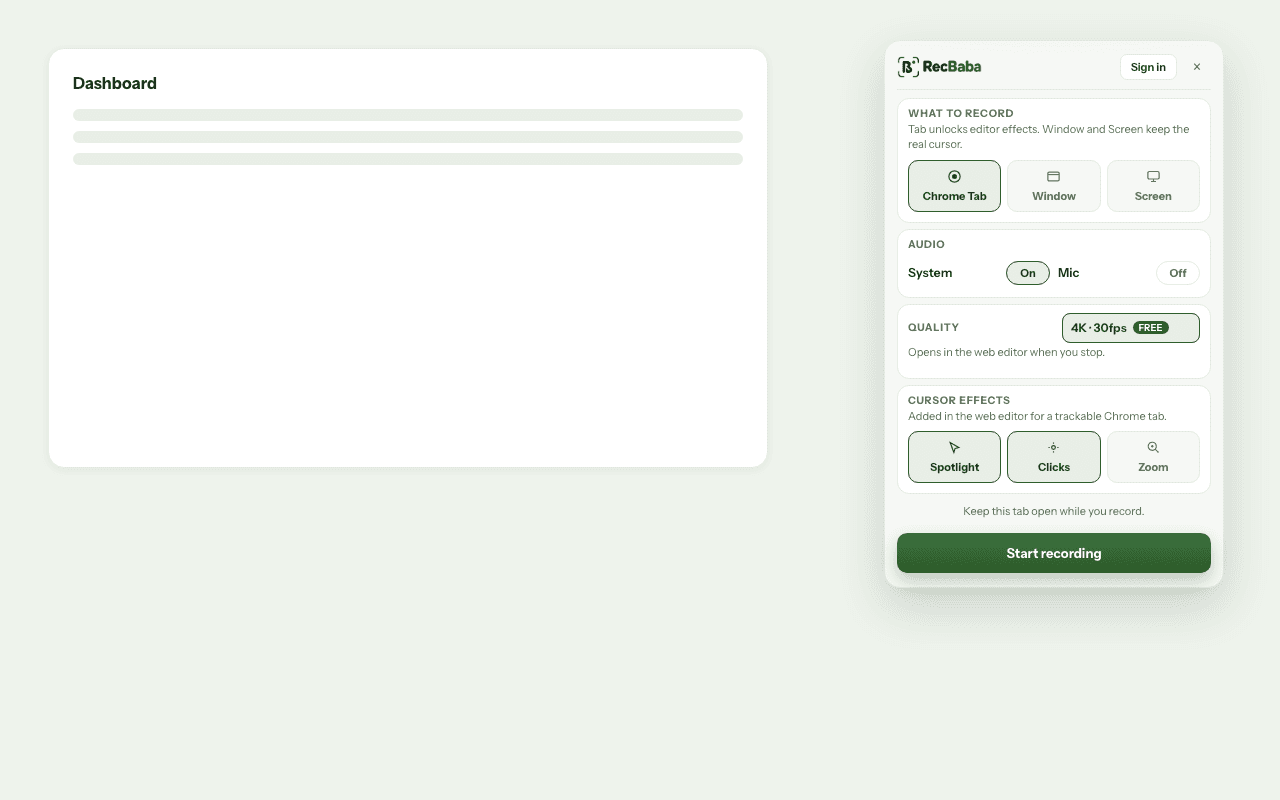
Two toggles, one file. System (or tab) audio and the microphone are independent; the mix is written into the local WebM.
What “system audio” means in Chrome
When you record a Chrome tab, system audio is the sound that tab is playing — a video, a call in the browser, a product demo with narration already on the page. When you record a window or the full screen, it is the computer audio Chrome is allowed to capture for that surface. Exact behaviour follows Chrome’s capture picker; RecBaba does not bypass the browser’s permission prompt.
Turn both sources on
- Open the RecBaba overlay on the page you will show.
- Enable the microphone. Chrome will ask for mic permission the first time.
- Enable system or tab audio. Confirm the capture picker includes audio if Chrome shows that option.
- Do a five-second test. Stop, open the editor, and play the clip. You should hear your voice and the page (or computer) sound in the same timeline.
If you only hear one of them
- Mic silent: check the OS input device, Chrome’s site permission for the microphone, and that the overlay’s mic toggle is on.
- Tab silent: you recorded a window or screen instead of a tab, or Chrome’s picker was set to video-only. Record the tab again and include audio in the picker.
- Echo: the mic is picking up speakers. Use headphones, or mute system audio and narrate only.
| Need | Mic | System / tab audio |
|---|---|---|
| Silent bug clip | Off | Off |
| Voiceover of a quiet UI | On | Off |
| Product that already makes sound | On | On — use headphones |
| Capture the page, no narration | Off | On |
A clean mix, without a studio
Headphones are the cheapest upgrade. They stop the microphone from re-recording the tab. Keep the mic a consistent distance from your mouth; RecBaba is not a cloud “enhance my voice” pipeline, so the take you hear in the editor is the take you captured. If a stretch of narration is wrong, trim it. If a stretch of system audio is wrong, mute that segment in the editor rather than stacking a second mix in another tool — unless you already have an NLE you prefer.
Bluetooth headsets sometimes register as both the input and the output. If the voice sounds thin or the tab audio disappears, switch Chrome to the built-in mic for a test take, then pick the headset again once you know which device Chrome granted.
Where the mix lives
The mix is written into the local WebM. Trimming in the editor keeps both channels. Exporting MP4 keeps them. Sharing a link, if you choose to, uploads the file you already mixed — RecBaba does not re-process audio in the cloud to “enhance” it.
That is the setup the Chrome Web Store listing summarizes as “mic and system audio.” The overlay is where you actually flip the switches.
Record the next take locally
4K, mic and system audio, no watermark. The file stays on this computer until you choose to share.
Start recording