Screen Recording for Teachers and Course Creators
Record a lesson in Chrome with RecBaba, caption it on-device on Pro/Max, export MP4 for your LMS or YouTube — or share a private RecBaba link.
On this page
A course recording often includes a student roster, a gradebook, or a licensed slide. Cloud-first tools treat stop as upload. RecBaba treats stop as “the file is on this computer.” You can still publish. You do not have to use RecBaba as the host.
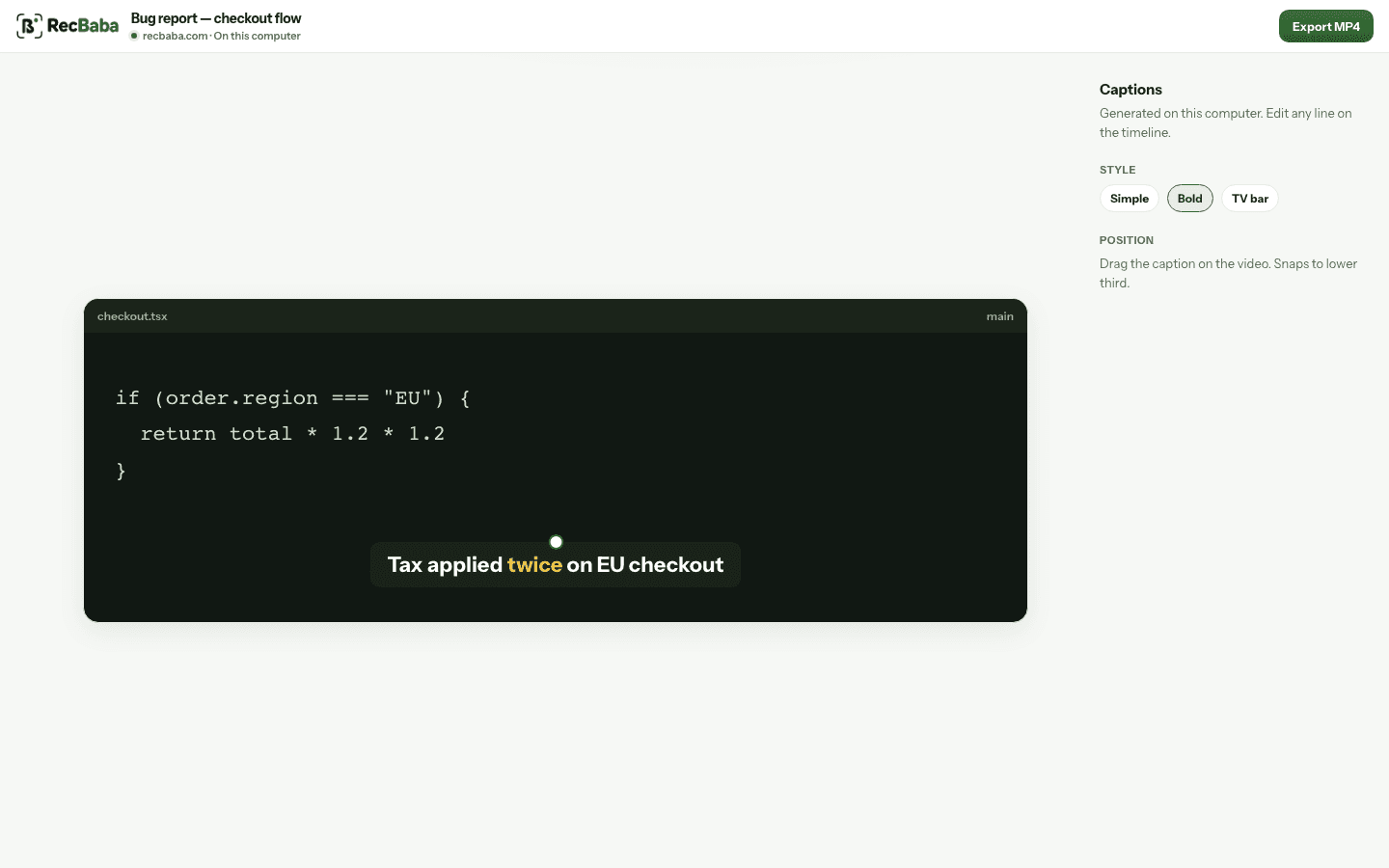
Burn captions into the MP4 for the LMS. A share-page transcript is a different, after-Share path.
A simple lesson path
- Record the tab or window in 1080p or 4K, with mic and tab audio if the demo makes sound.
- Trim the false start. Add a title. Caption on Pro or Max if the lesson needs it.
- Export MP4. Upload that file to the LMS or YouTube Studio.
- If a single class should watch without downloading, Share a passworded RecBaba link and expire it after the term.
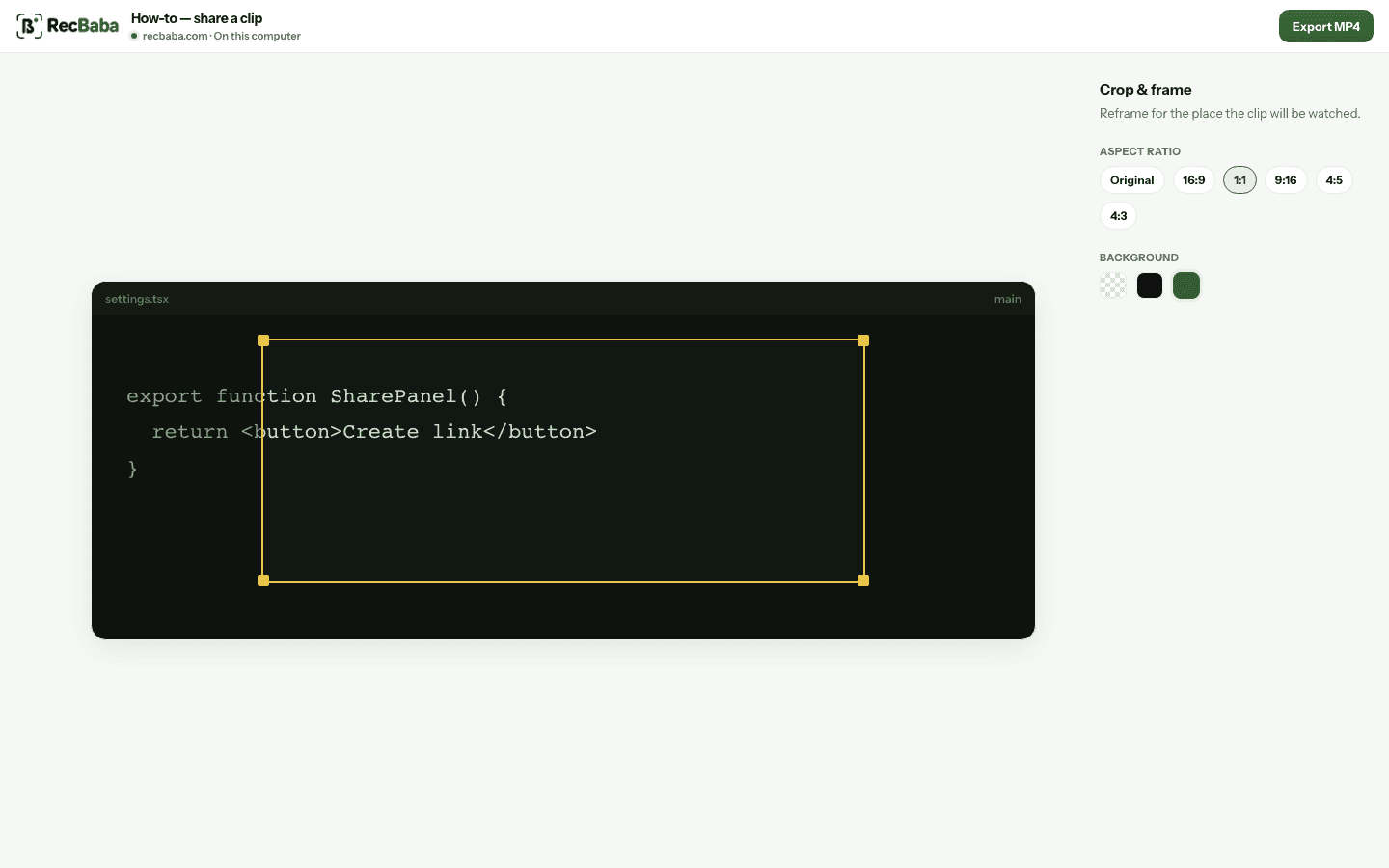
Reframe a chapter for a short vertical recap without recapturing the hour.
Brand the class link on Max
If students open a RecBaba URL, Brand Kit on Max puts the school or course lockup on the page and an end-screen button back to the LMS. The domain is still recbaba.com/share. The MP4 you exported for YouTube is still unwatermarked.
Do not use a RecBaba share as the canonical course file. LMS and YouTube already understand MP4. Use RecBaba when you need revoke after the term, a password for a roster that should not leak, or chapters for a long lecture you already uploaded. Crop the gradebook out before either destination.
Record the next take locally
4K, mic and system audio, no watermark. The file stays on this computer until you choose to share.
Start recording