On-Device Captions for Chrome Screen Recordings
Generate English captions in RecBaba’s local editor. The speech model runs on your computer — Pro and Max, no transcription upload.
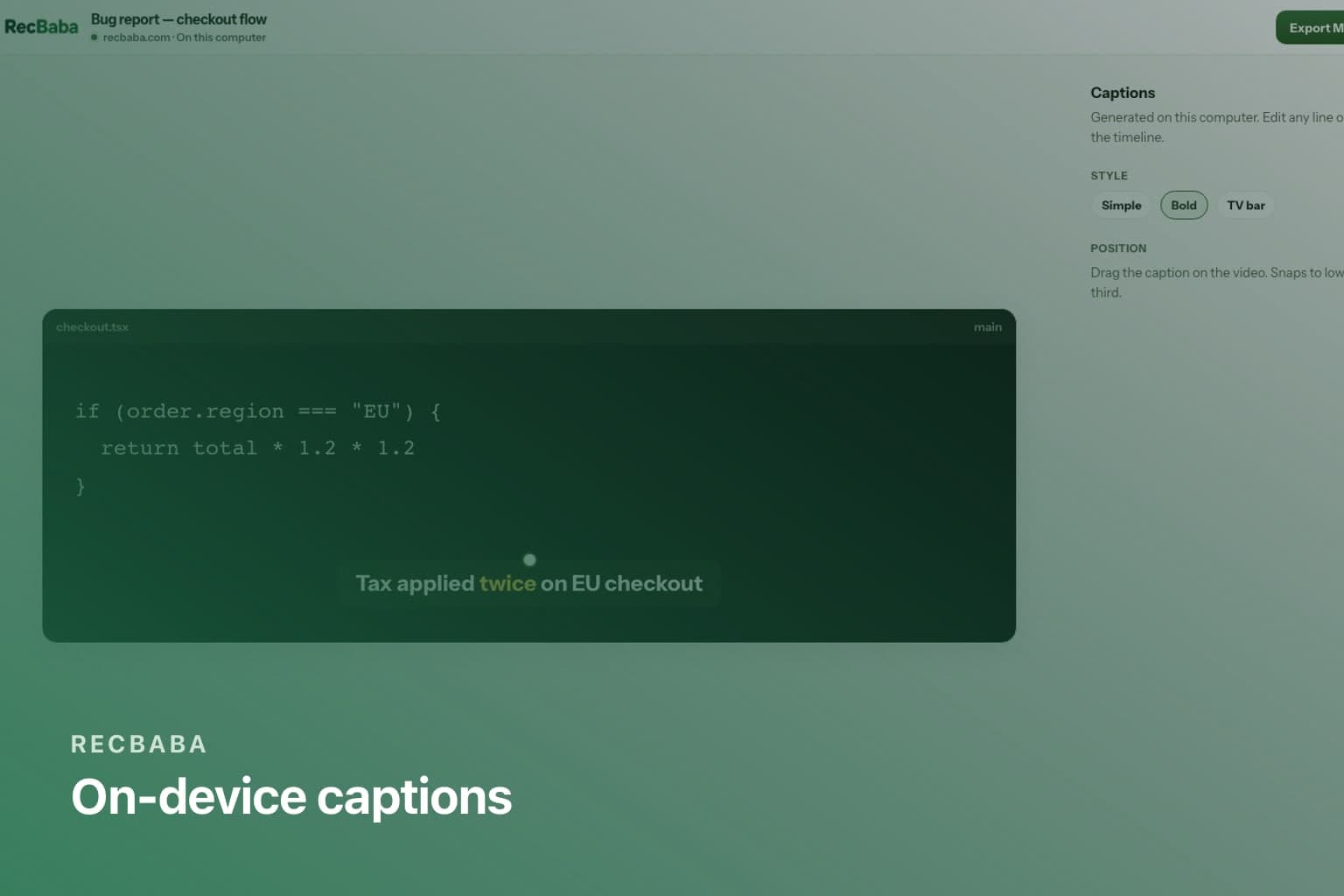
Most “auto captions” for a screen recording send the soundtrack to a cloud speech API. RecBaba’s editor captions do not. On Pro and Max you generate English captions on this computer. Word timings come back with the lines, so playback can highlight the spoken word. Free can still trim, overlay text, and export — captions are the paid on-device layer, not a reason to upload.
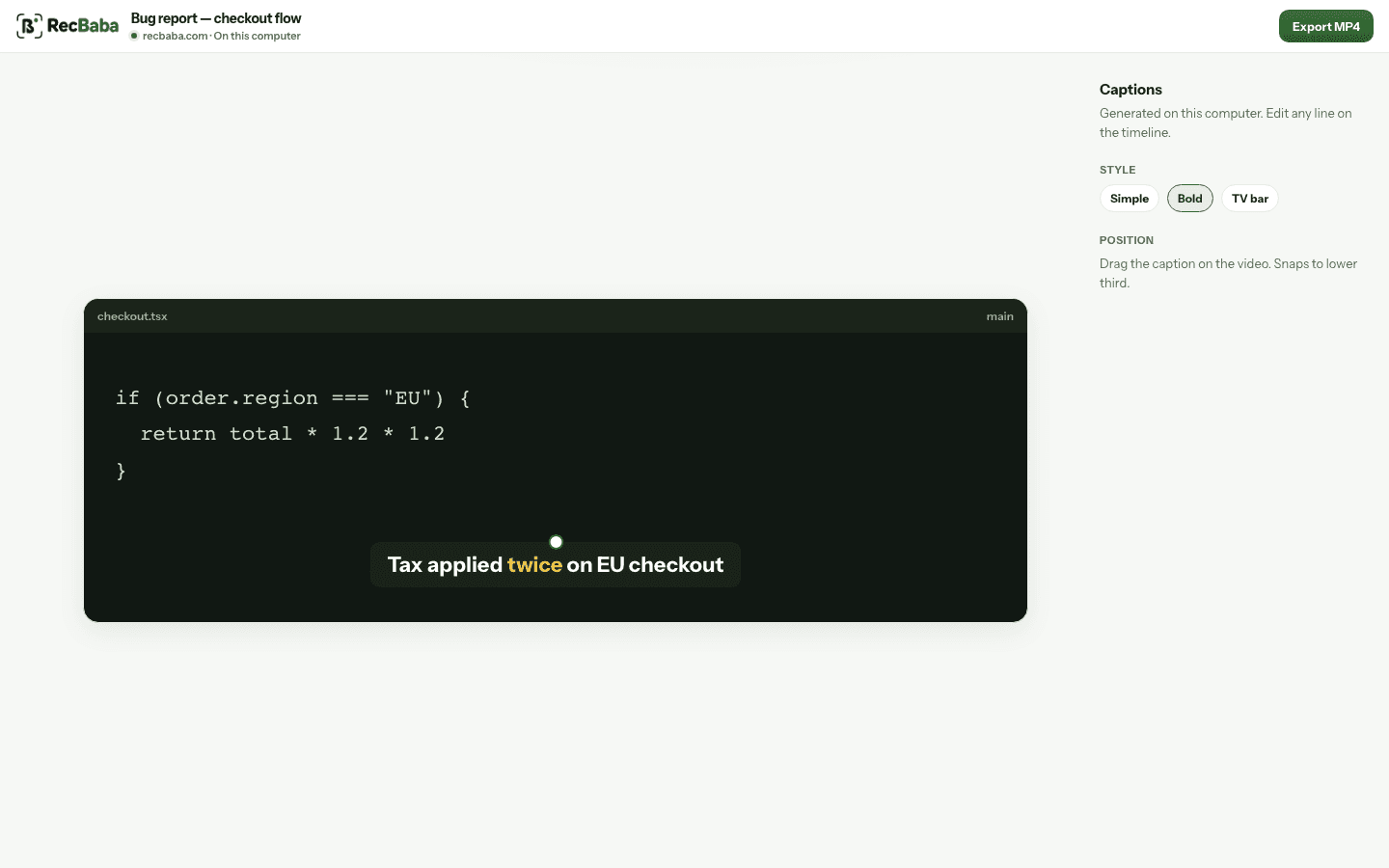
Styles sit on the timeline. Edit a line without regenerating the rest of the take.
How to generate captions
- Stop a recording and open it in the local editor. Nothing has uploaded.
- On Pro or Max, generate captions. The first run fetches a speech model to this machine.
- Wait for the lines to land on the timeline. Play the clip — the spoken word lights up.
- Fix a wrong line in place. Change style or drag the caption to a snap point.
- Export MP4. Captions bake into the file. Share is still a separate button.
What you can style
- Simple, Bold, and TV bar presets.
- Drag to lower third, center, or top, with snap guides.
- Add a caption by hand at the playhead if you skipped generate.
- Edit one line without regenerating the take.
| Tool | Where it runs | Plan |
|---|---|---|
| Editor captions | This computer | Pro and Max |
| Share transcript | After Share, speech-to-text provider | Pro+ (Cloud Storage) |
| Summary and chapters | From a ready transcript | Pro and Max |
When to skip captions
A five-second bug clip for a teammate rarely needs a caption track. A tutorial you will publish often does. RecBaba will not invent captions on Free, and it will not upload the audio “to help you” — if you want the burned-in track, generate it here, then export.
Record the next take locally
4K, mic and system audio, no watermark. The file stays on this computer until you choose to share.
Start recording