
Crop and Aspect Ratio for Screen Recordings
Reframe a RecBaba desktop capture for 16:9, square, or vertical posts. Crop in the local editor — Custom Recording Area is not a capture mode.
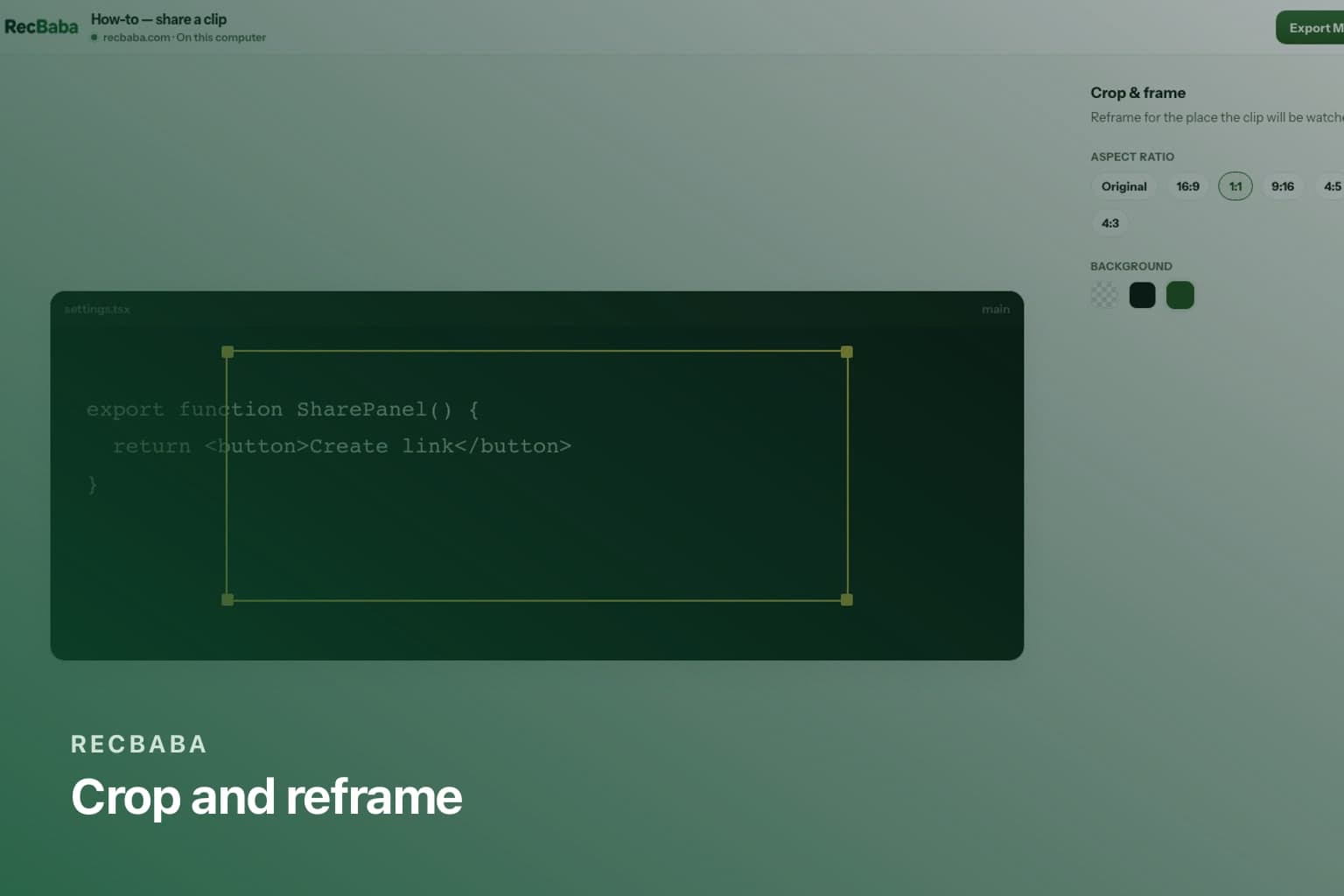
A 16:9 desktop grab is the wrong shape for a square post or a vertical story. RecBaba reframes in the editor: six output shapes, an interactive crop box, and a background fill for the empty space. You do not need an account. Export uses the frame you set.
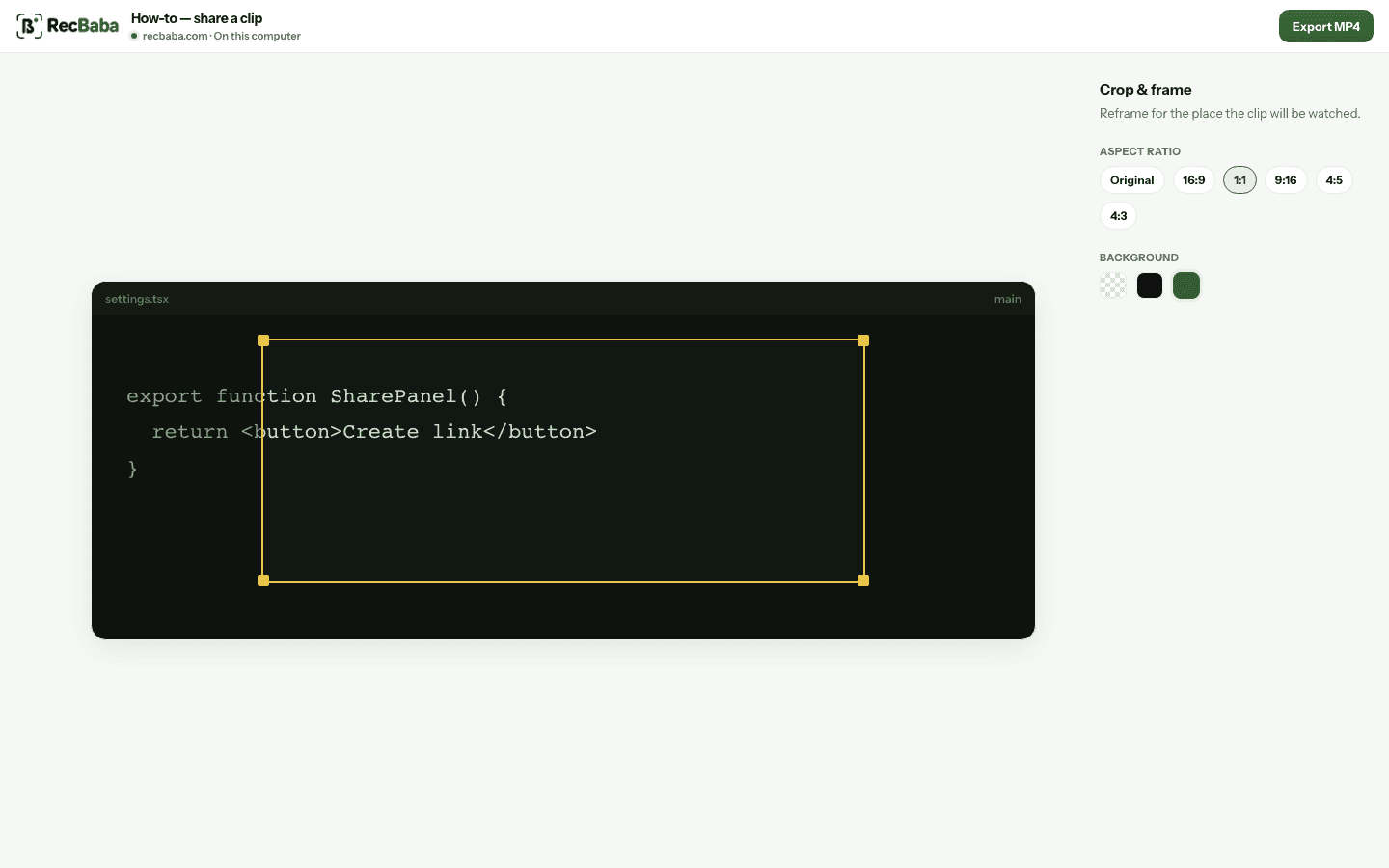
Original, 16:9, 4:3, 1:1, 9:16, and 4:5. Letterbox can be black, none, or a color you pick.
The six shapes
| Ratio | When to use it |
|---|---|
| Original | Keep the captured frame. |
| 16:9 | YouTube, docs, most share pages. |
| 4:3 | Older decks and some training portals. |
| 1:1 | Feed posts that must stay square. |
| 9:16 | Stories and short vertical clips. |
| 4:5 | Taller feed posts without a full story crop. |
Why there is no in-capture region tool
A custom recording area in the overlay sounds convenient and is easy to get wrong — you clip a toast, miss a modal, or crop a password field you meant to leave out after the fact. RecBaba records the surface you picked, then lets you crop. If something should never leave the machine, crop it before you export or share.
That also keeps capture simple on Chrome. Tab, window, and screen already have permission prompts and audio rules. A free-drawn rectangle on top of those is a second failure mode. Crop after stop is slower by a few seconds and much harder to regret. If you always publish vertical, capture the desktop anyway so you still have the sides if the layout shifts mid-take.
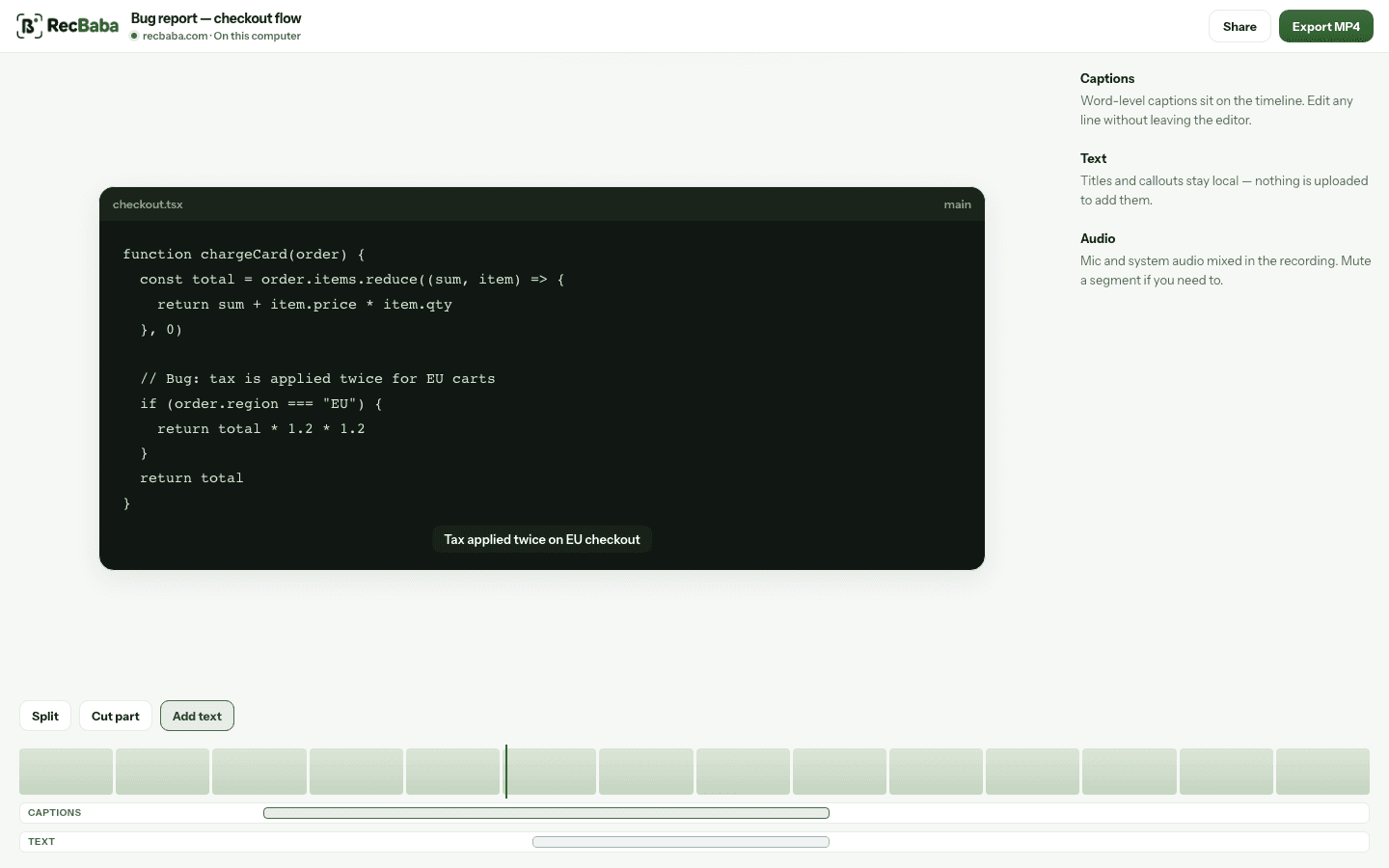
Crop is an edit. Opening the editor never starts an upload.
Record the next take locally
4K, mic and system audio, no watermark. The file stays on this computer until you choose to share.
Start recording